By the end of this list, an ergonomic home office setup will be 32 measurable adjustments instead of a vague wish for a nicer chair. Most cost nothing, and a few take under five minutes.
Picture the before: a dining chair, a laptop on a 30-inch table, and a neck bent like a question mark on a gray February afternoon. The after is the same corner with a screen at eye level, a lamp on the correct side, and shoulders that finally drop.
Ergonomic home office setup: How it all comes together
An ergonomic home office setup answers one question: does every joint rest in a neutral position while the eyes and hands work? Neutral means elbows near 90 degrees, feet flat, spine supported, and the screen where the neck doesn’t have to tilt.
The rules below run like a renovation. Dimensions come first, then comfort, storage, function, layout, and finally the styling that makes you want to sit down.
1. Set the desk so your elbows land at 90 to 100 degrees
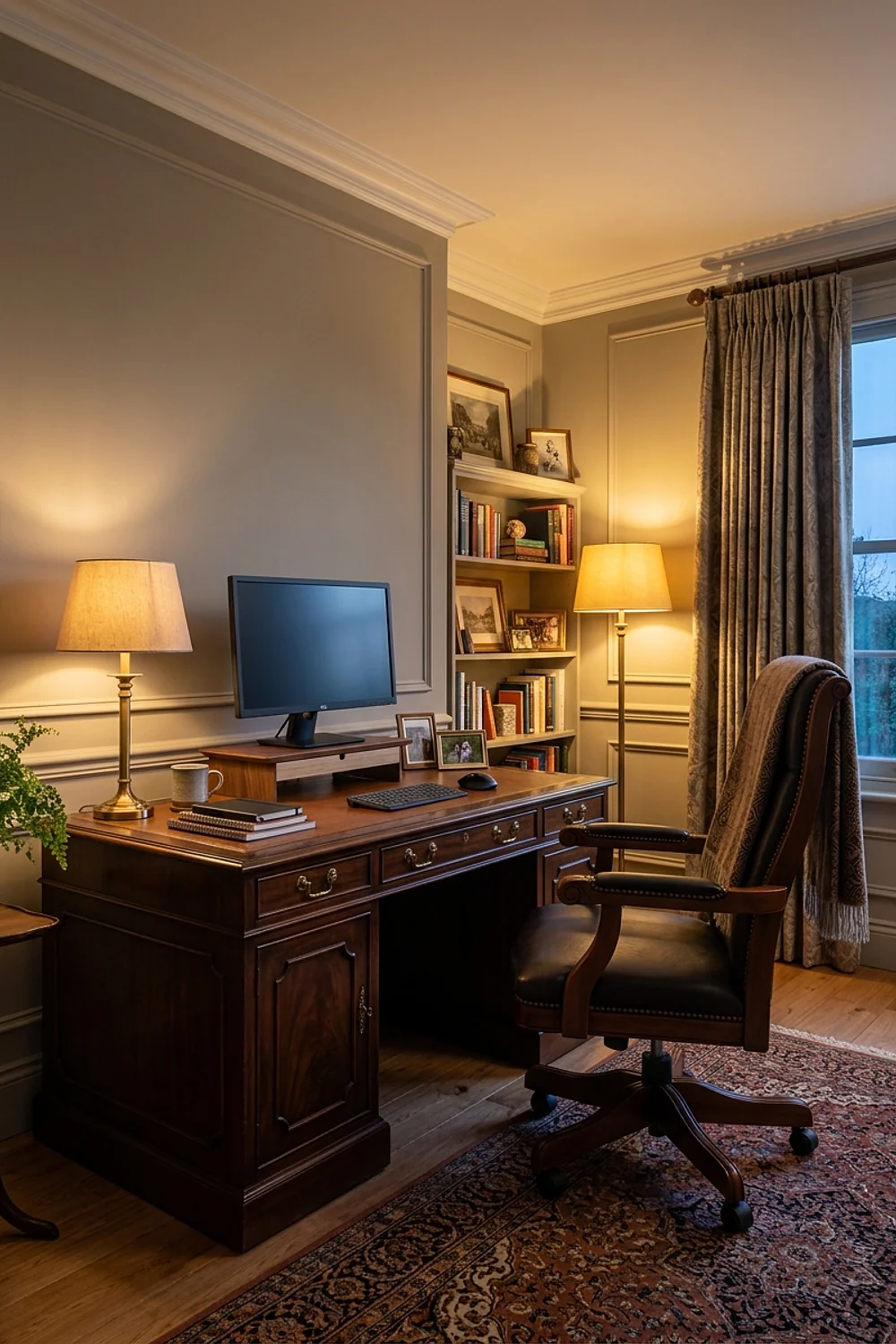
A standard desk sits 29 to 30 inches off the floor, a height tuned to someone around 5 foot 10. Everyone else is compromising. Workstation standards such as ANSI/HFES 100 point to forearms roughly parallel with the floor and loose shoulders, which is what that angle delivers.
Taller people can lift the desk on 2-inch risers. Shorter people should raise the chair instead and add a footrest, because dangling feet press on the backs of the thighs.
Test it by dropping your hands onto the keyboard. If your shoulders rise even half an inch, something is too high.
2. Check for a three-finger gap behind the knees
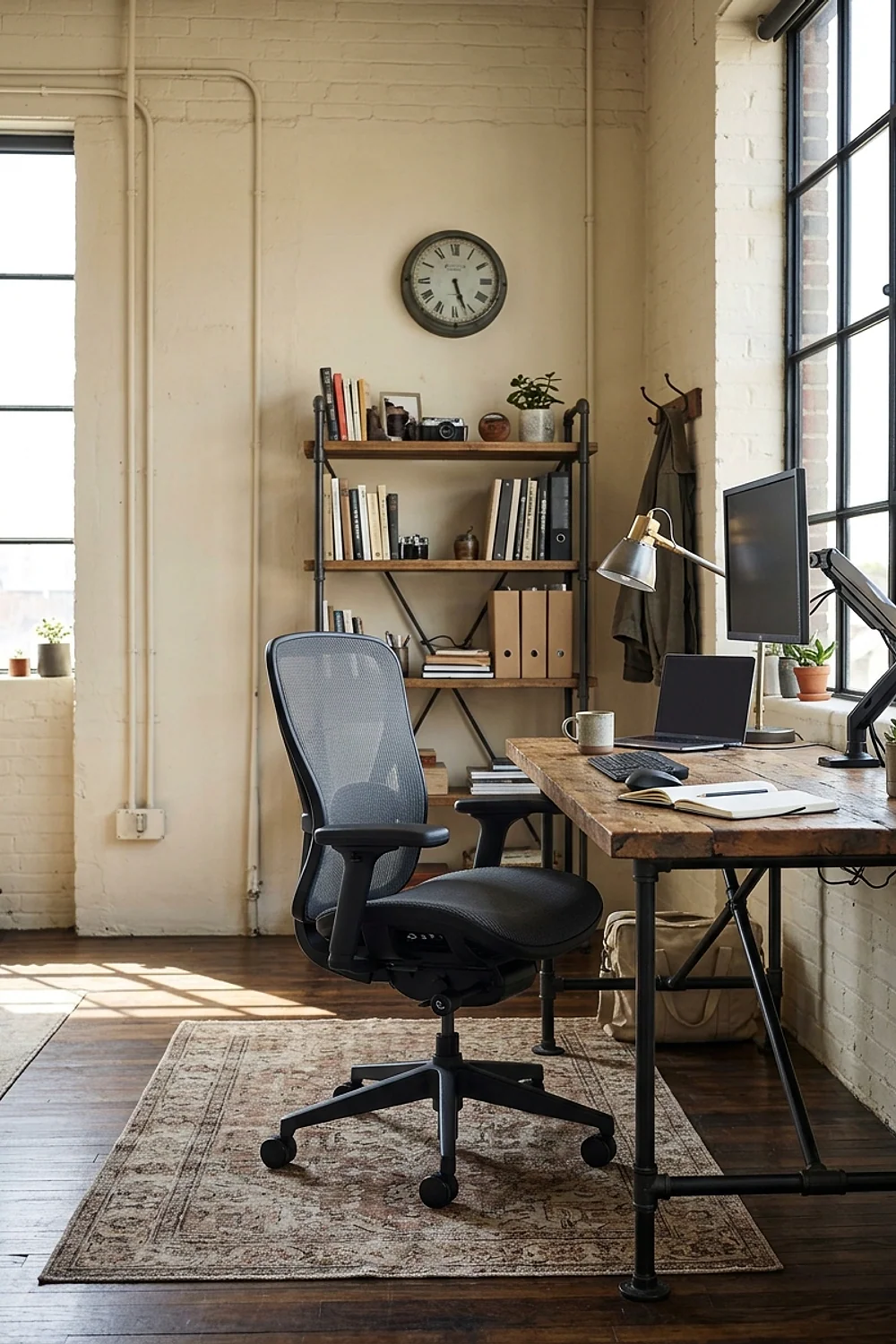
Sit all the way back and slide two or three fingers between the front edge of the seat and the back of your knee. Less than that and the seat edge squeezes the thigh. More than that and the backrest stops doing its job.
Shorter users get caught by deep seats most often. Look for a seat-depth slider, or a pan around 16 to 18 inches deep, and skip any chair that only adjusts height.
3. Keep daily tools inside a forearm’s reach

Reach out with a bent elbow and the arc you draw is roughly 16 inches. Anything you touch more than five times a day belongs inside it: notebook, pen cup, phone dock, water glass.
A shallow 2-inch drawer tray beats a deep drawer for this. Items you rarely need can live on the far corner, because the twist to reach a stapler across the desk adds up over a year of workdays.
4. Pick a chair with adjustable lumbar support, not just a cushion
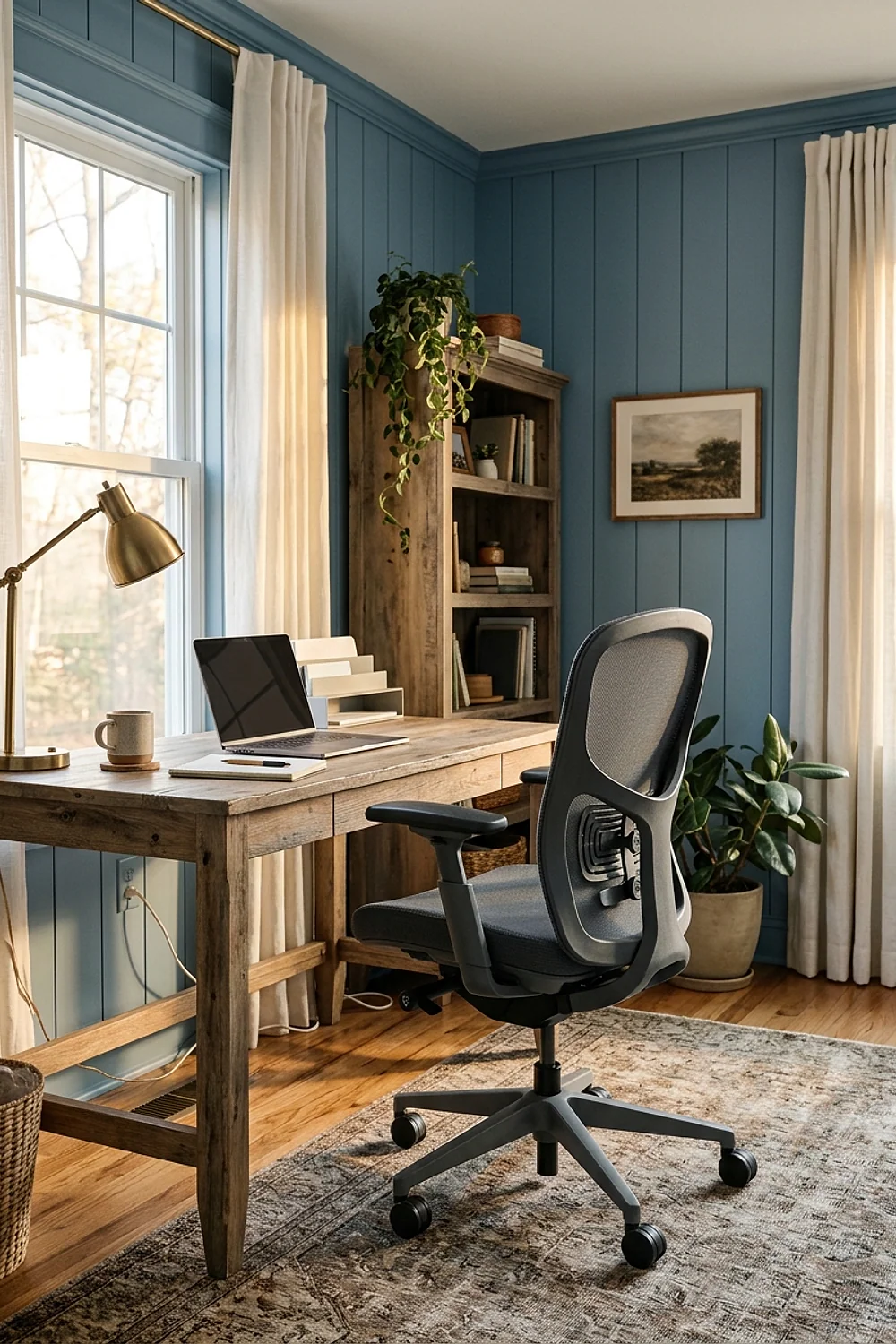
Adjustable lumbar support follows the inward curve of the lower spine, roughly at belt height. A strapped-on foam pillow slides, flattens, and never sits where your back sits. For long days, a real mechanism pays off.
The Steelcase Leap (around $1,200) and the IKEA Markus (around $250) both handle this. If you share the desk with someone of a different height, check that the lumbar height moves up and down, not only in and out.
5. Raise the laptop screen and add a separate keyboard
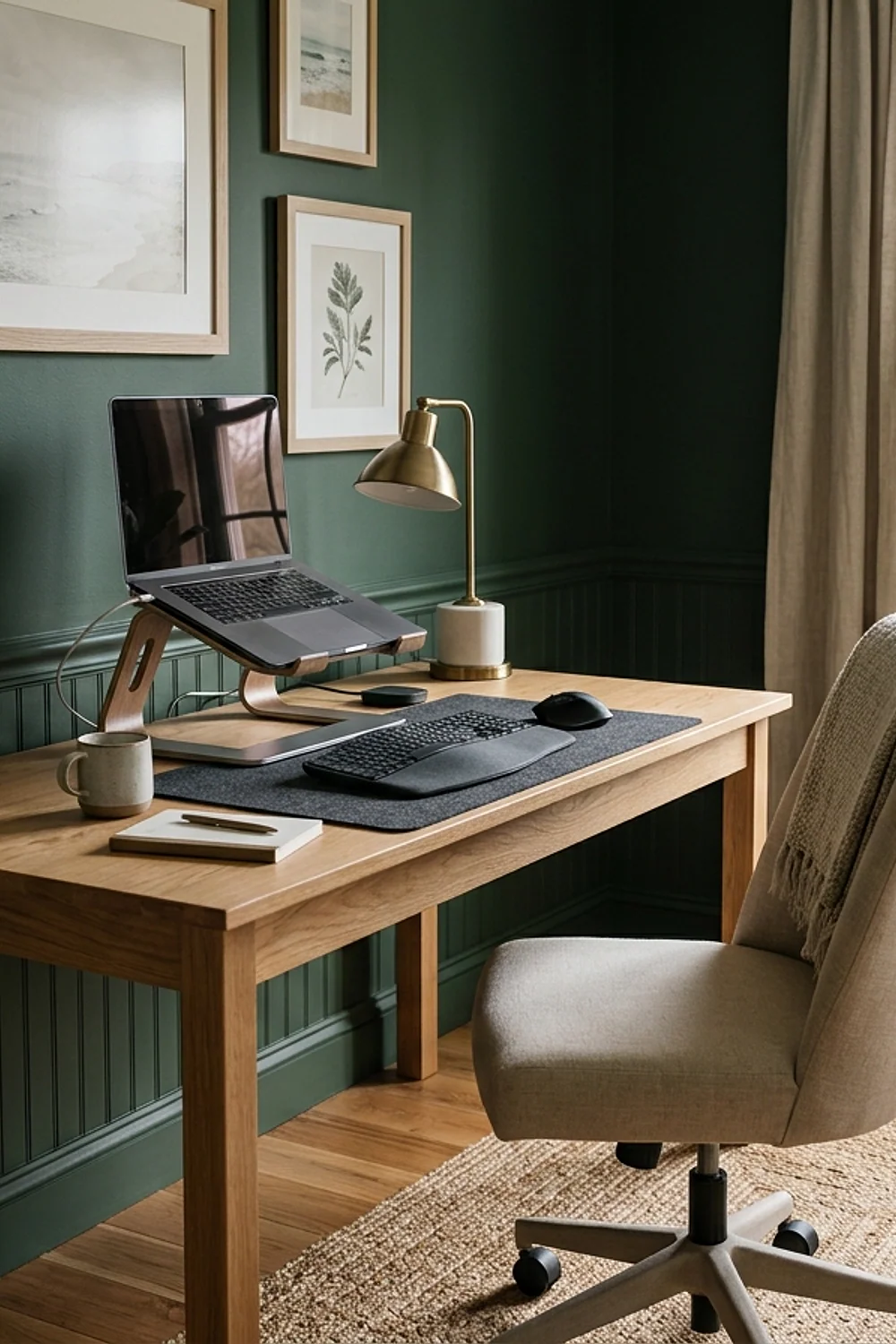
Typing on a laptop flat on the desk forces a choice: neck down or wrists up. Both are bad, and the dining chair most people start with makes it worse.
The fix is a riser or a 4-inch stack of hardcover books, plus an external keyboard and mouse. Laptop-only workers who sit under two hours a day can bend this, but anyone past four hours shouldn’t.
6. Place the monitor an arm’s length away, top edge at eye level
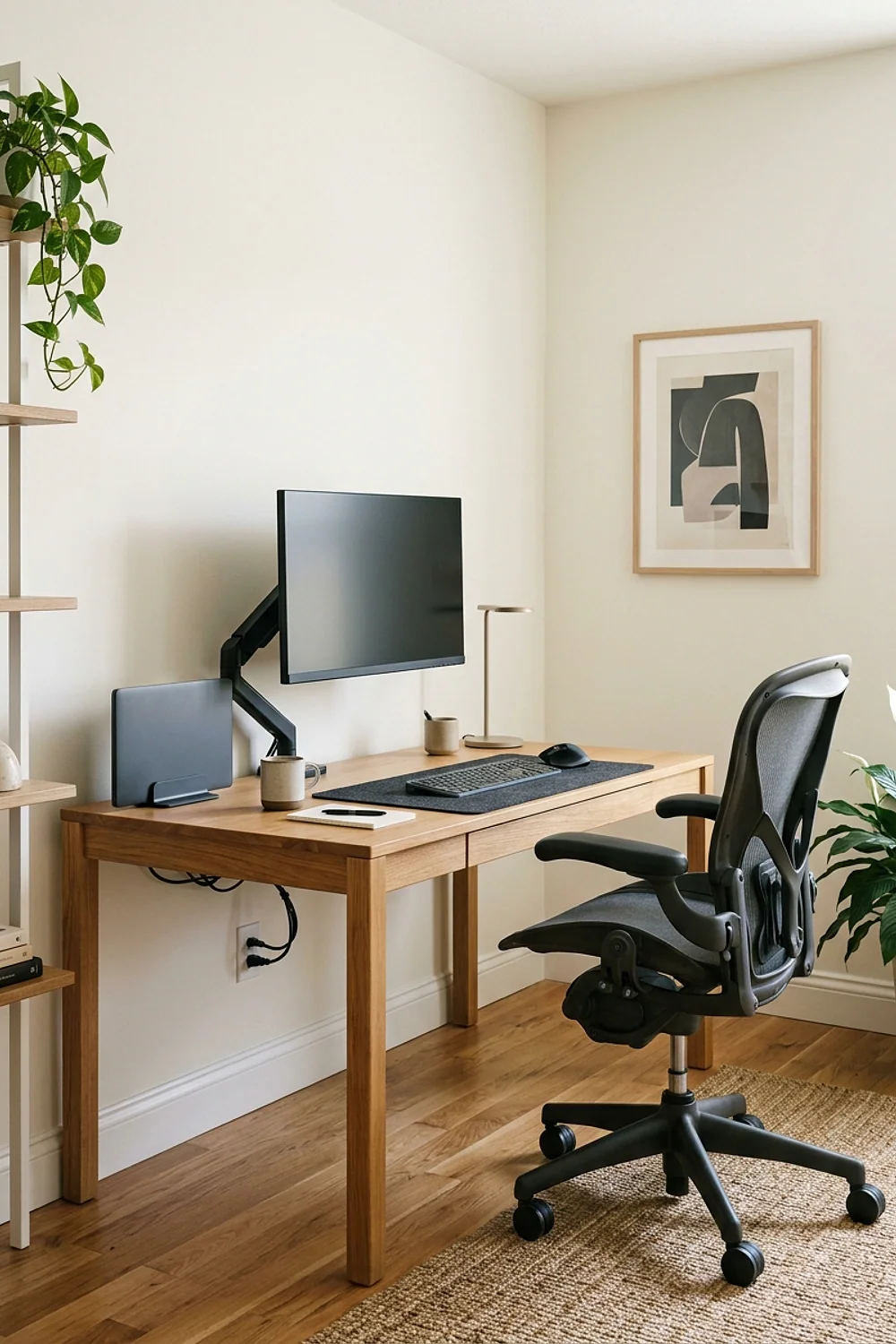
An Ergotron LX arm, usually $150 to $200, clamps to the desk edge and holds a screen 20 to 30 inches from your eyes. The top edge of the display should sit at or just below your eye line, tilted back 10 to 20 degrees.
Bifocal and progressive-lens wearers should drop the screen another inch or two so they aren’t tipping the chin up. Check the clamp against your desk thickness first, since many arms max out around 3 inches.
7. Dress the monitor riser in wood instead of plastic
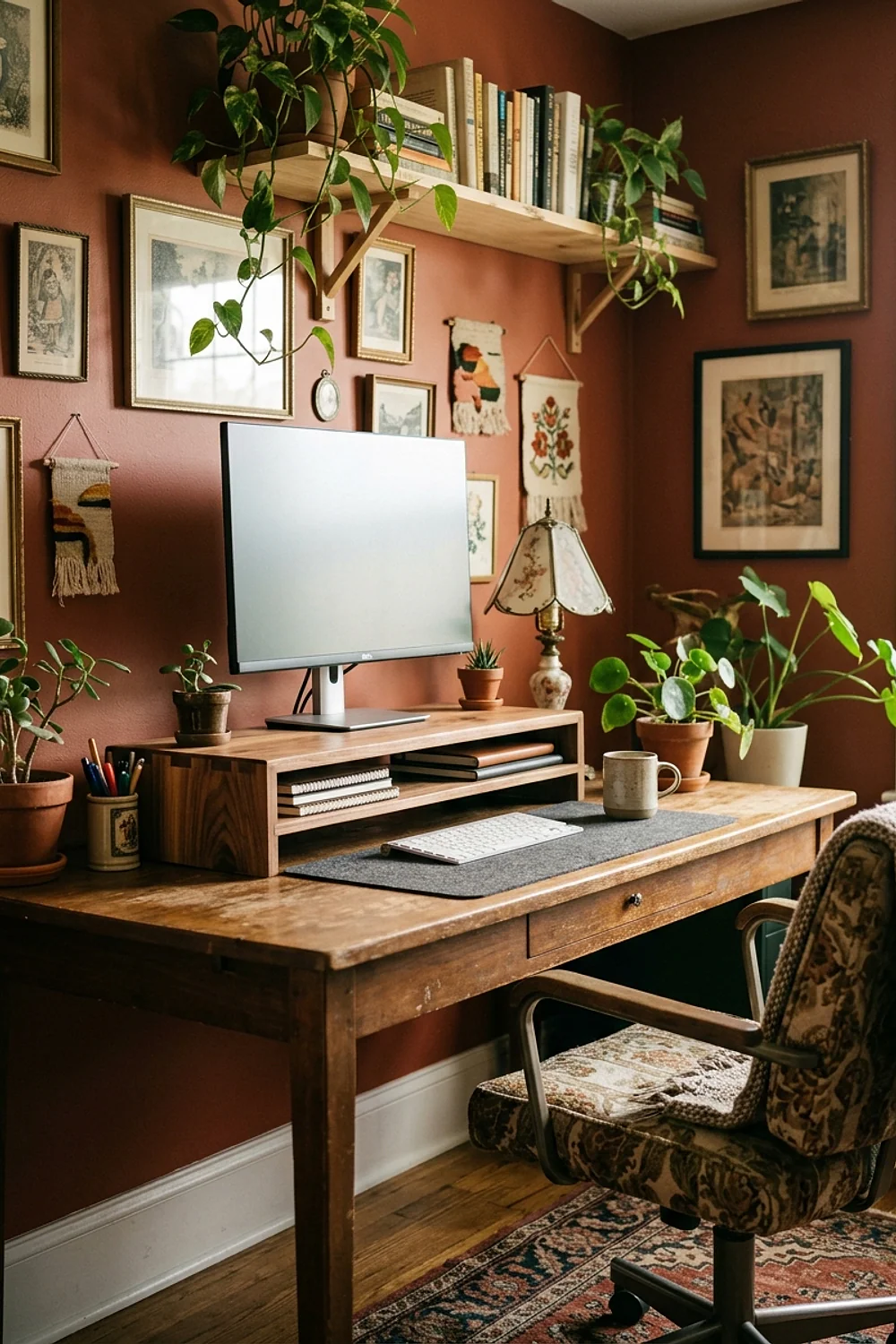
A solid oak riser four inches tall, stained to match the desktop, looks intentional where a black plastic shelf looks like leftover office supply. It also gives the keyboard somewhere to tuck away at the end of the day.
Measure the width of your keyboard first (most run 17 to 18 inches) and leave 2 inches of slack. A riser that wobbles or sits crooked ruins the effect and the monitor height at once.
8. Choose a matte, mid-tone desktop to tame glare
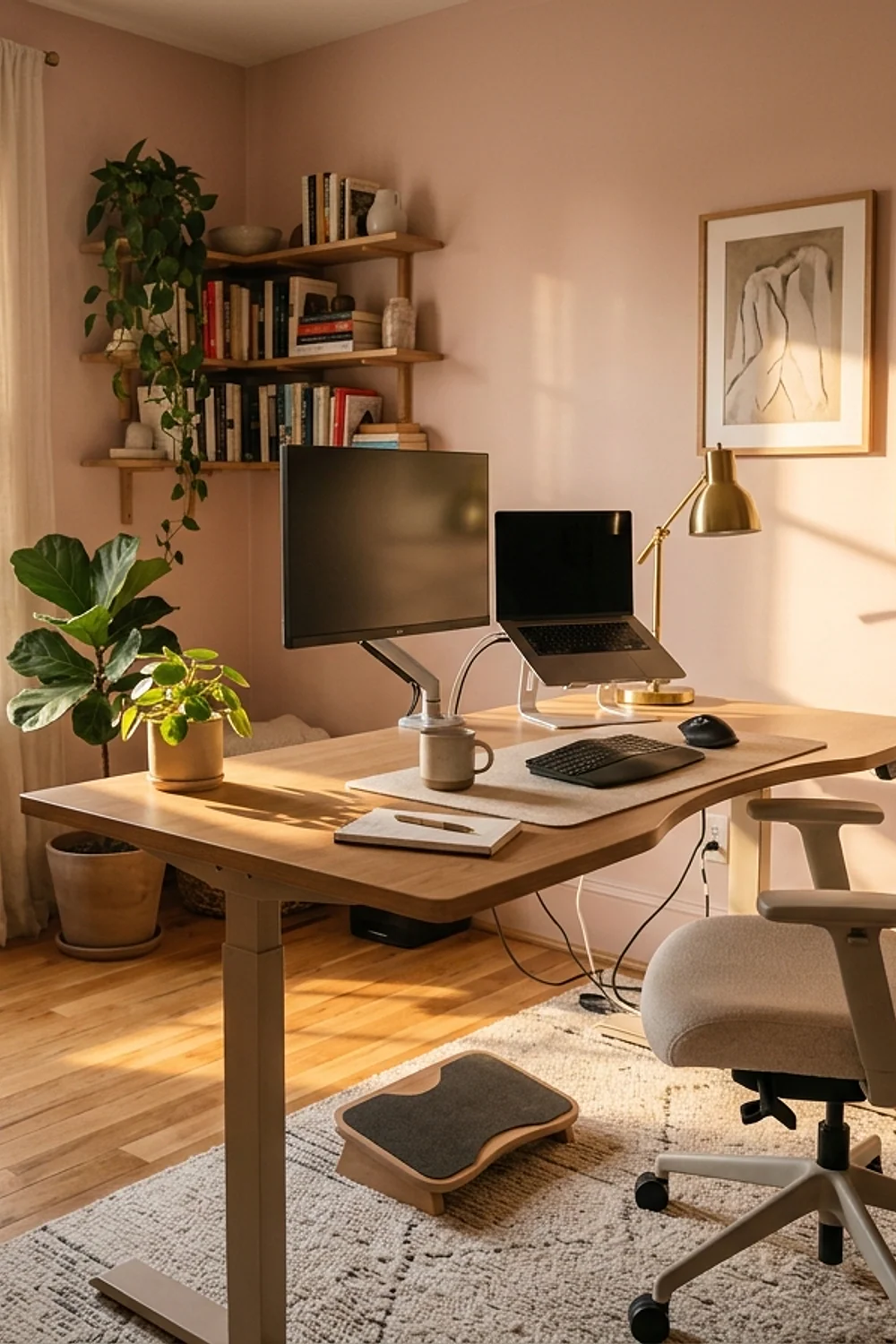
Glossy white lacquer looks great in photographs and terrible under a window. It bounces light straight into the eyes and makes a bright screen look dimmer by comparison.
Oak, walnut veneer, gray linoleum, and matte laminate all absorb more than they reflect. If a gloss surface is already there, a 24 by 14 inch felt desk mat cuts the reflection without replacing anything.
9. Put the window at your side, never behind or in front of the screen

Late-afternoon sun comes in low and flat, so a window behind the monitor throws glare across the glass at exactly 4pm when you’re tired. A window in front of you makes you squint instead.
Turn the desk so the glass sits to the left or right. A sheer curtain or a cellular shade softens direct beams without making the room feel like a cave.
10. Round the desk edge instead of leaving a sharp corner

A bullnose or eased desk edge with at least a 3 mm radius spares the wrists and the underside of the forearms. A square 90-degree front edge presses on tendons during long typing sessions.
Solid wood and quality laminate both come rounded. Glass tops are a poor choice here: the edge is hard, the surface is cold on bare forearms in winter, and it shows every fingerprint.
11. Buy a desk at least 27 to 30 inches deep

Thirty inches of depth lets a 27-inch monitor sit about 28 inches from your eyes with the keyboard in front of it. A 20-inch-deep console desk pushes the screen too close.
Narrow rooms tempt people into shallow desks, and that trade usually backfires within a week. A better answer is a shorter desk that’s still deep: 48 inches wide by 30 inches deep fits a lot of corners.
12. Lower the armrests until they barely touch the elbows

Armrests that sit too high push the shoulders toward the ears and cause a dull ache across the upper trapezius by mid-afternoon. They should support the forearm’s weight, not lift it.
Adjust them while typing, not while leaning back, and slide them inward if they hit the desk edge. Chairs with 4D arms (height, width, depth, pivot) handle this best; fixed arms usually can’t.
13. Store heavy items between knee and shoulder height
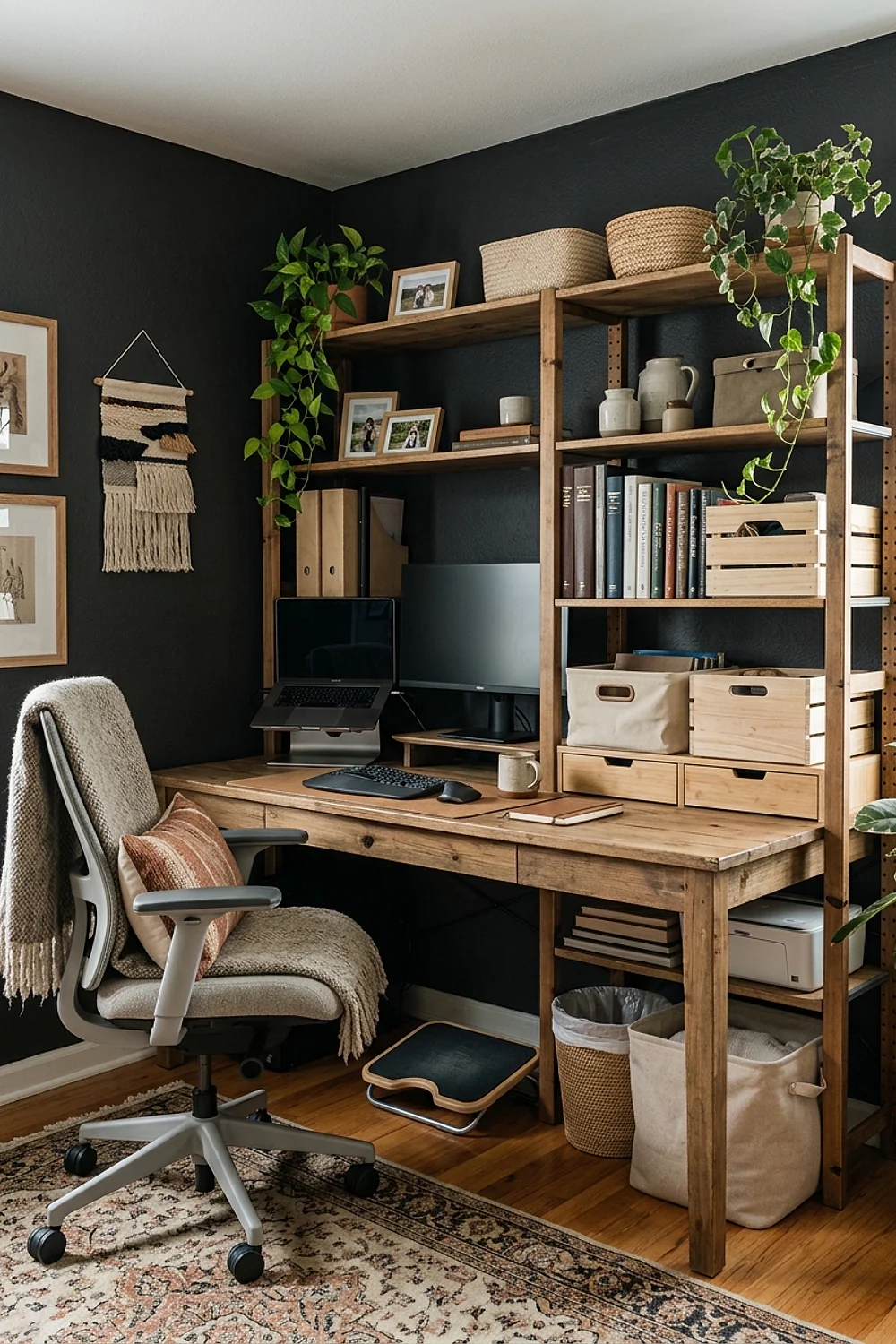
Printer paper reams weigh about 5 pounds each, and a box of them on a high shelf is a shoulder injury waiting for a Tuesday. Heavy binders and reference books belong between the knee and the shoulder.
Light things go up high: empty storage bins, seasonal décor, a framed print. A low credenza in a small room does double duty as a printer stand and a book shelf.
14. Alternate sitting and standing on a 20-8-2 rhythm

Cornell ergonomics professor Alan Hedge suggests 20 minutes sitting, 8 standing, and 2 moving around. An electric desk like the Uplift V2, often $600 to $900 depending on top size, makes the switch a button press.
Here’s the counterintuitive part: standing all day isn’t healthier. Long static standing strains feet, knees, and veins. The goal is variety, so a standing desk only helps if you actually change position.
15. Skip the racing-style gaming chair

Racing-style gaming chairs borrow bucket-seat shapes from sports cars, and the fixed headrest pillow and heavy side bolsters rarely fit anyone’s actual spine. The neon colorways also date within a couple of years.
This is the classic early mistake: buying the loudest trend first. Faux leather also tends to crack at the seams, while a plain mesh or wool-blend task chair outlasts three desks and fits into any room.
16. Center the main screen and angle the second one inward
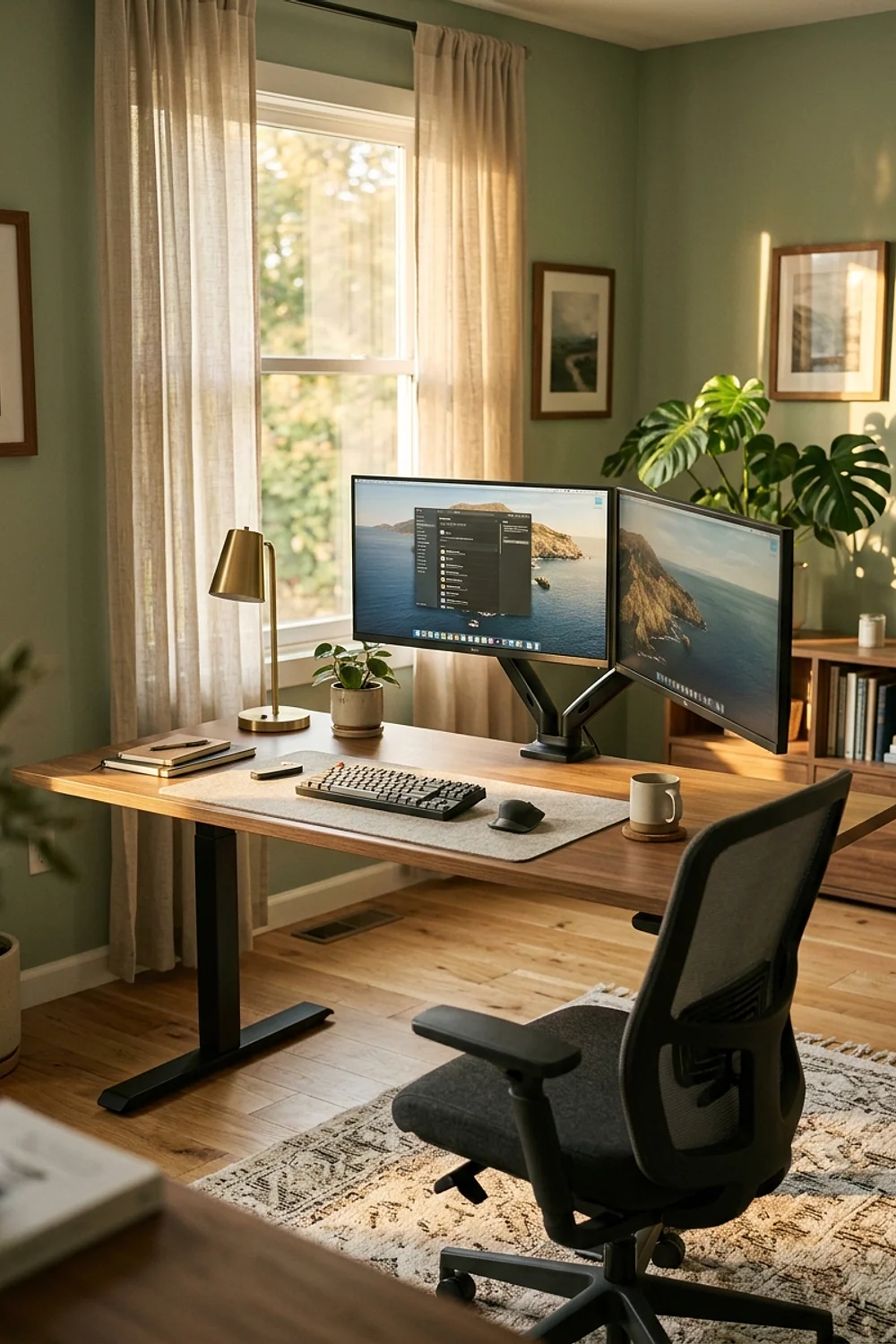
Two monitors need a clear boss. The one you look at most goes directly in front of you, and the other sits at roughly 30 degrees off to the side so the neck turns without twisting.
If both screens get equal use, meet them at the center seam and angle them like an open book. Matching sizes and similar bezel widths matter more than matching brands.
17. Keep plants low and off to one side

A pothos in a 6-inch pot at the desk’s corner gives the eyes somewhere green to rest without cutting the sightline to the screen. Tall leaves in front of a monitor just collect dust and block light.
Snake plants handle low-light corners and forgotten waterings better than most. Put the pot on a saucer, because a ring on the desktop’s finish is a bad trade for a bit of leaf.
18. Paint the wall behind the screen a soft mid-tone
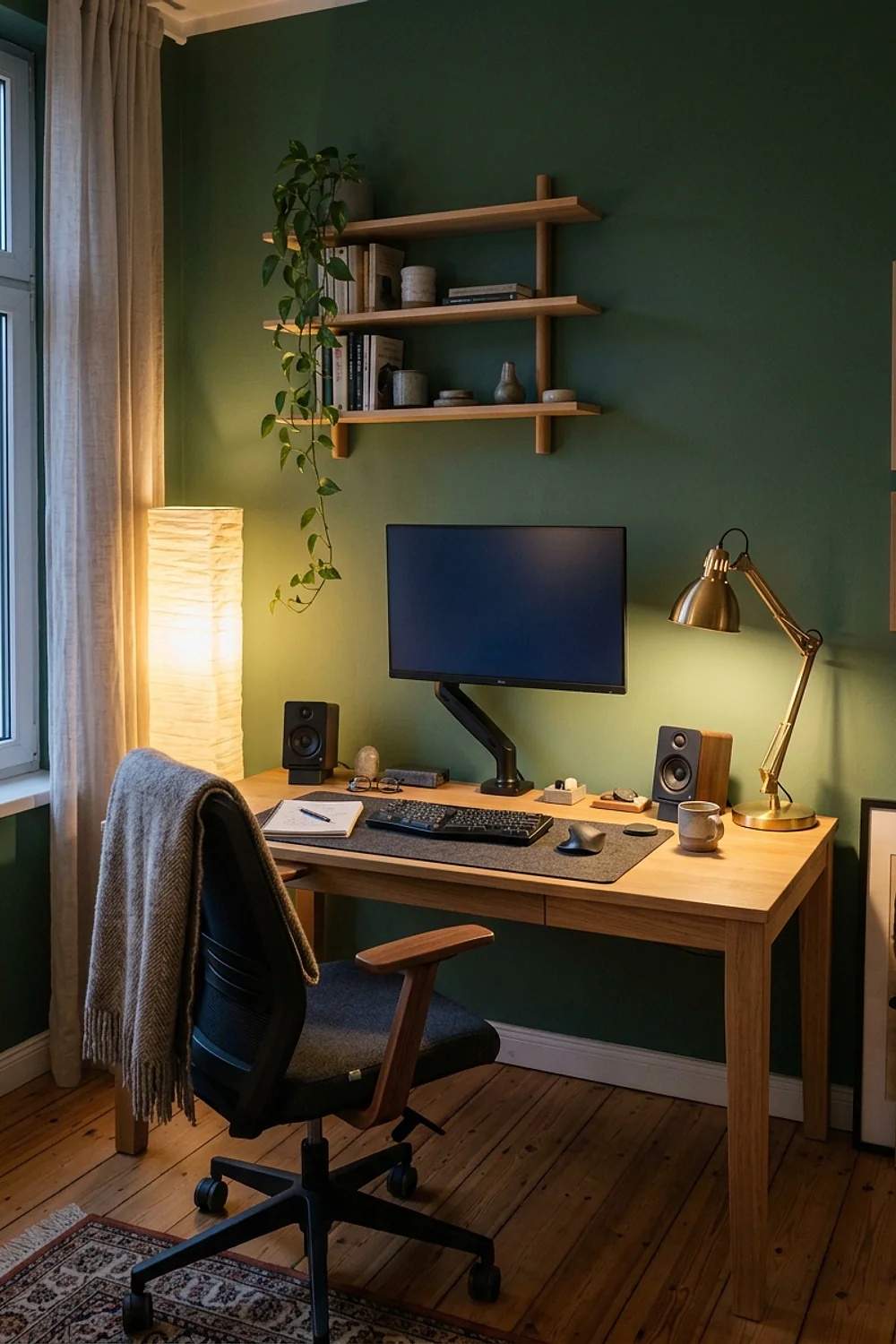
Stark white paint behind a bright screen sets up a contrast fight that tires the eyes by mid-afternoon. A muted sage, greige, or dusty blue lowers that gap and still reads as clean.
Choose a flat or matte finish, not eggshell, which catches window light. Test the sample at 4pm and again at 8pm, because office walls change character completely when the sun goes down.
19. Light the room to 300-500 lux with 3500-4000K bulbs

Overhead light alone leaves the screen as the brightest thing in the room, and the eye keeps adjusting. Layer a ceiling fixture with a lamp so the room sits at roughly 300 to 500 lux.
Bulbs in the 3500 to 4000K range read as neutral white. Anything bluer feels clinical in a home, and anything below 2700K makes reading paperwork a strain.
20. Match chair upholstery to the room’s temperature
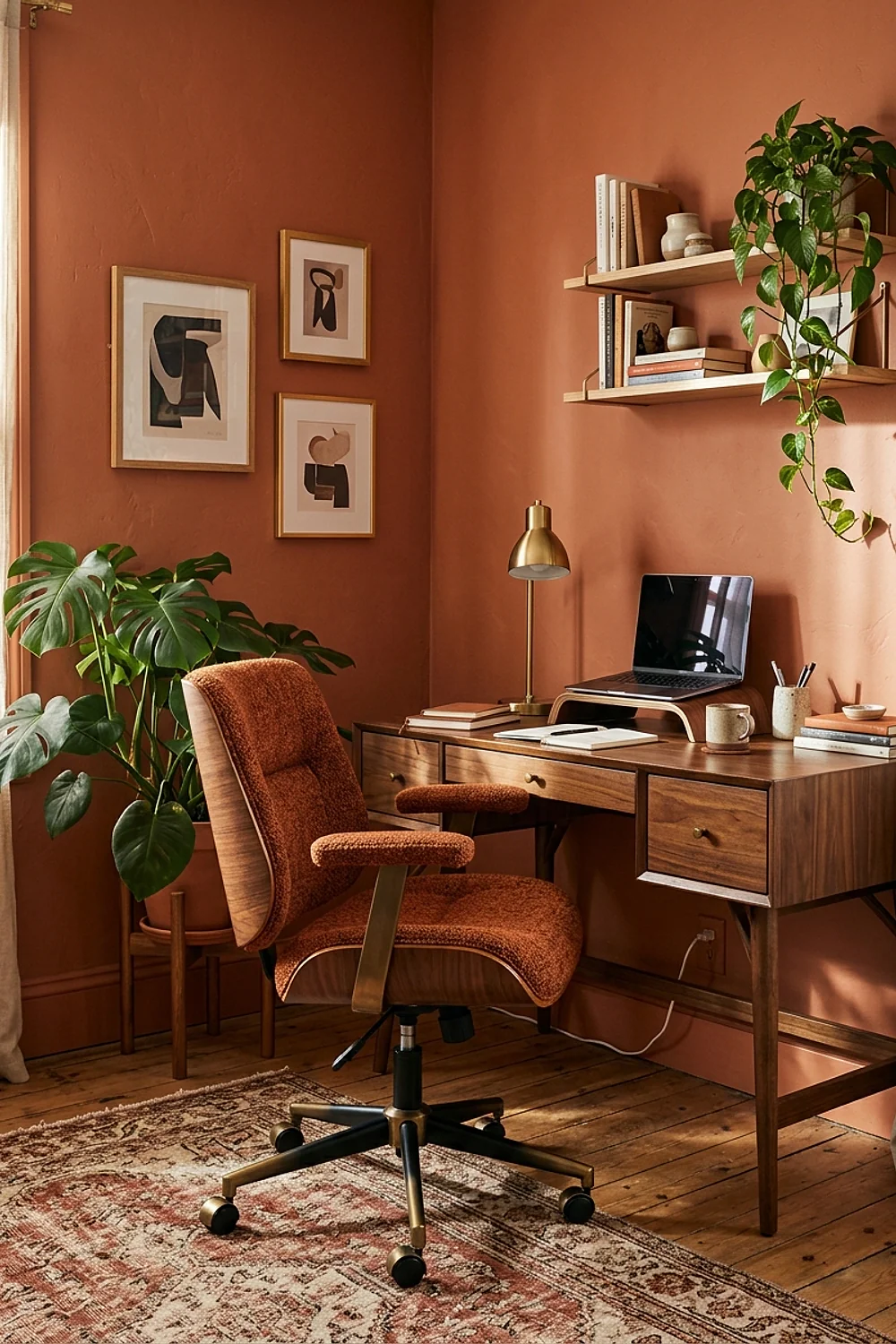
Mesh breathes, fabric insulates, and leather sticks to bare legs in July. A Herman Miller Aeron runs around $1,500 new and uses mesh for exactly that reason: open weave lets body heat escape. Sunny, warm rooms suit mesh. Cooler basements and north-facing corners suit wool-blend fabric, which holds warmth against the body.
Leather looks handsome but suits the person who sits for short stretches, not eight hours. Budget buyers should avoid bargain mesh, which can sag and feel scratchy, so press a hand into the seat first.
21. Leave 36 inches of clearance behind the chair

Behind the chair, 36 inches of clearance lets you stand, roll back, and walk past without bumping a wall or a bookshelf. Anything under 30 inches means you’ll sit hunched forward just to avoid it.
In a closet-sized nook, a chair with a smaller footprint helps, and so does a desk that sits flush against the wall. Measure the swing of the door, too, since that’s where the clearance usually disappears.
22. Add a footrest when your feet don’t reach the floor
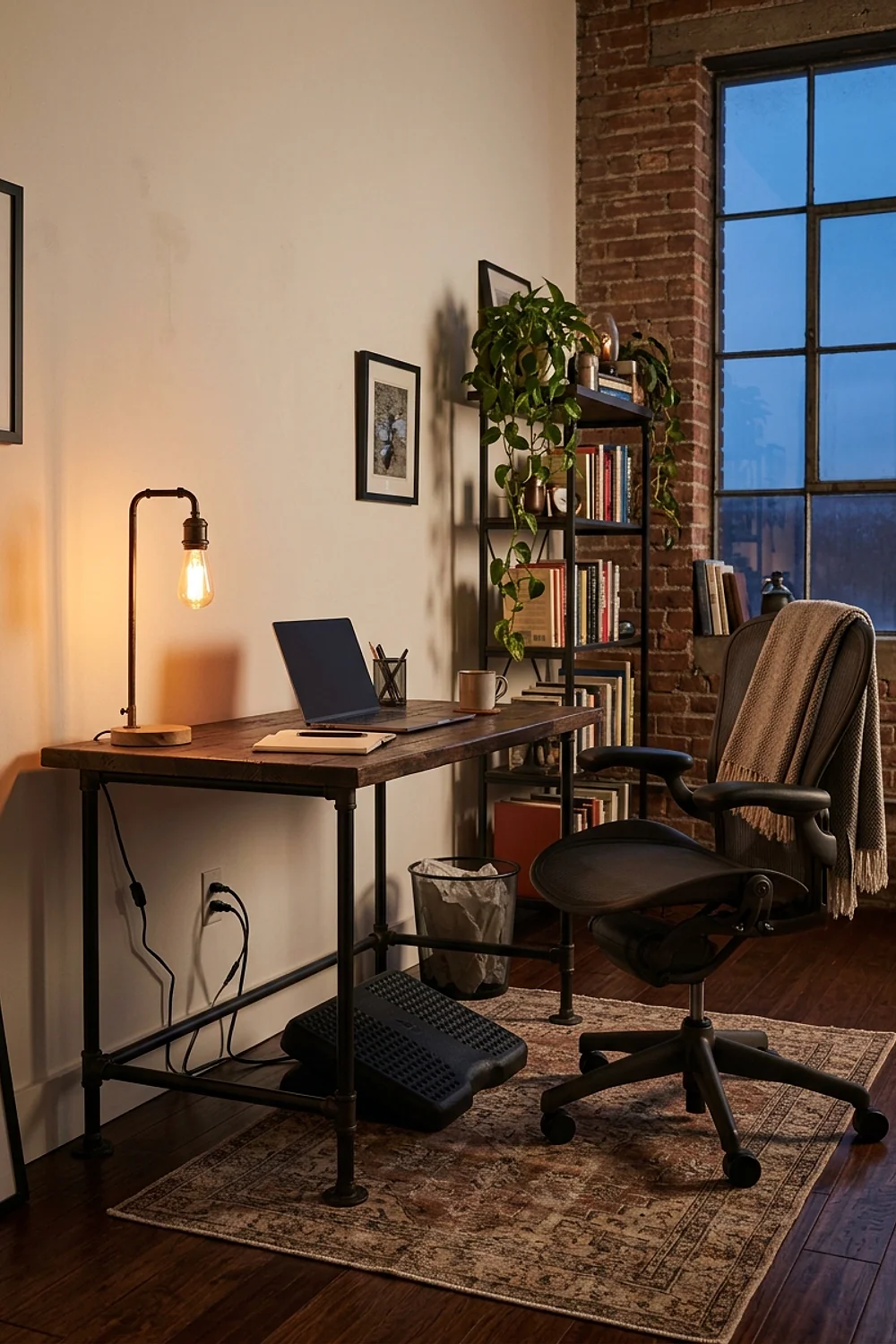
Feet that dangle shift weight onto the thighs and pelvis. An adjustable footrest, usually about $40, lifts them 4 to 6 inches and levels the knees with the hips.
Shorter users and anyone on a fixed-height desk benefit most. Pick one with a textured, tilting surface, and skip the stack of old phone books, since it shifts and ends up under a rolling chair wheel.
23. Mount a cable tray under the desktop

A cable bundle on the floor behaves like a coiled garden hose: tangled, always underfoot, and impossible to vacuum around. A 16-inch under-desk tray holds the power strip and the extra slack off the floor.
Leave a loop of cord at each device so a monitor arm can still move. Velcro ties beat zip ties because they can be undone when equipment changes.
24. Keep the keyboard flat and the mouse within reach
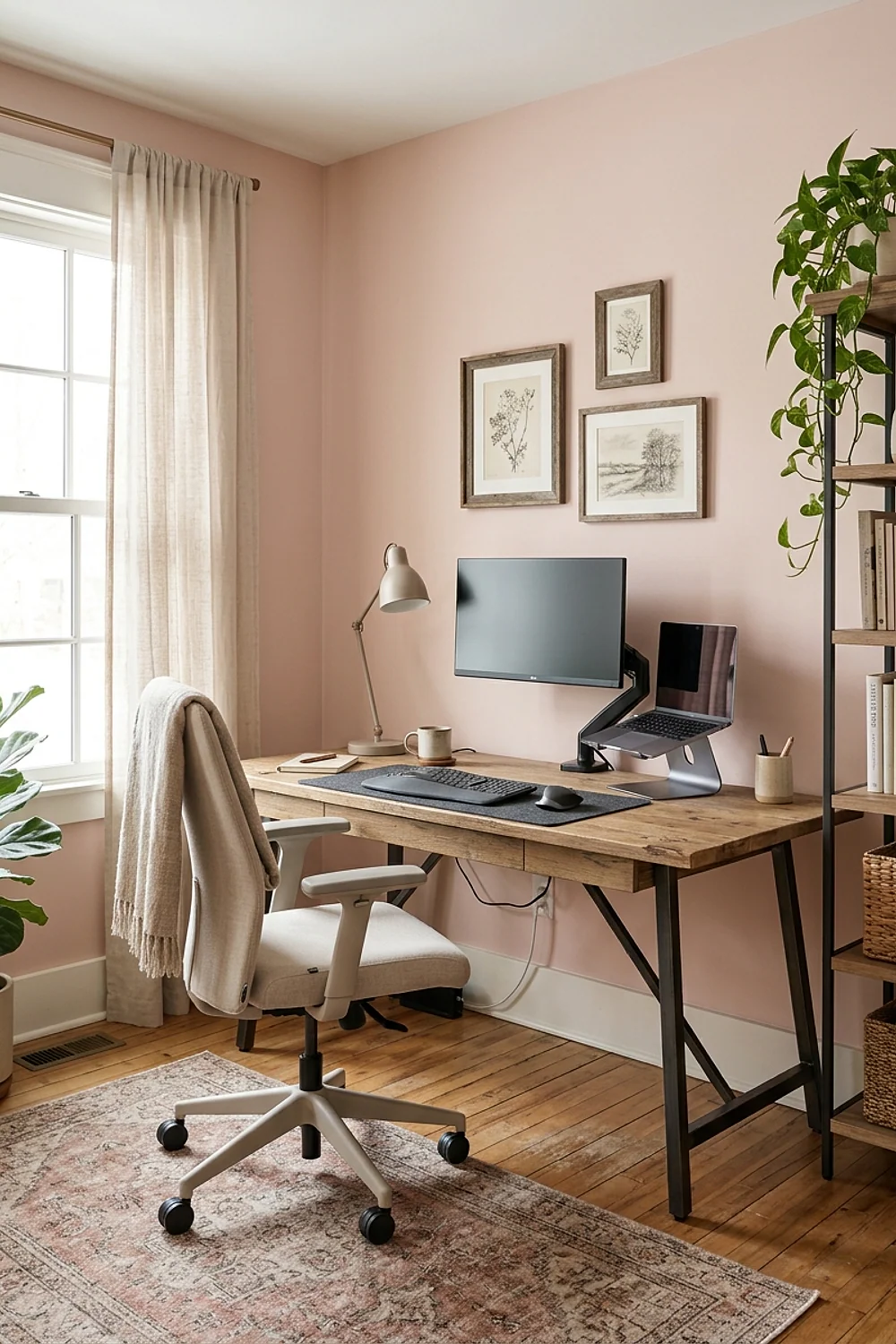
Wrists should stay straight, not bent upward at the end of a tilted keyboard. Flip the keyboard feet down, or aim for a slightly negative tilt, and keep the mouse next to the keyboard, not off in the next county.
Vertical mice such as the Logitech Lift suit people with early wrist discomfort. They take a day or two to feel natural, so judge them after a week, not in the first hour.
25. Switch to a headset for any call over five minutes
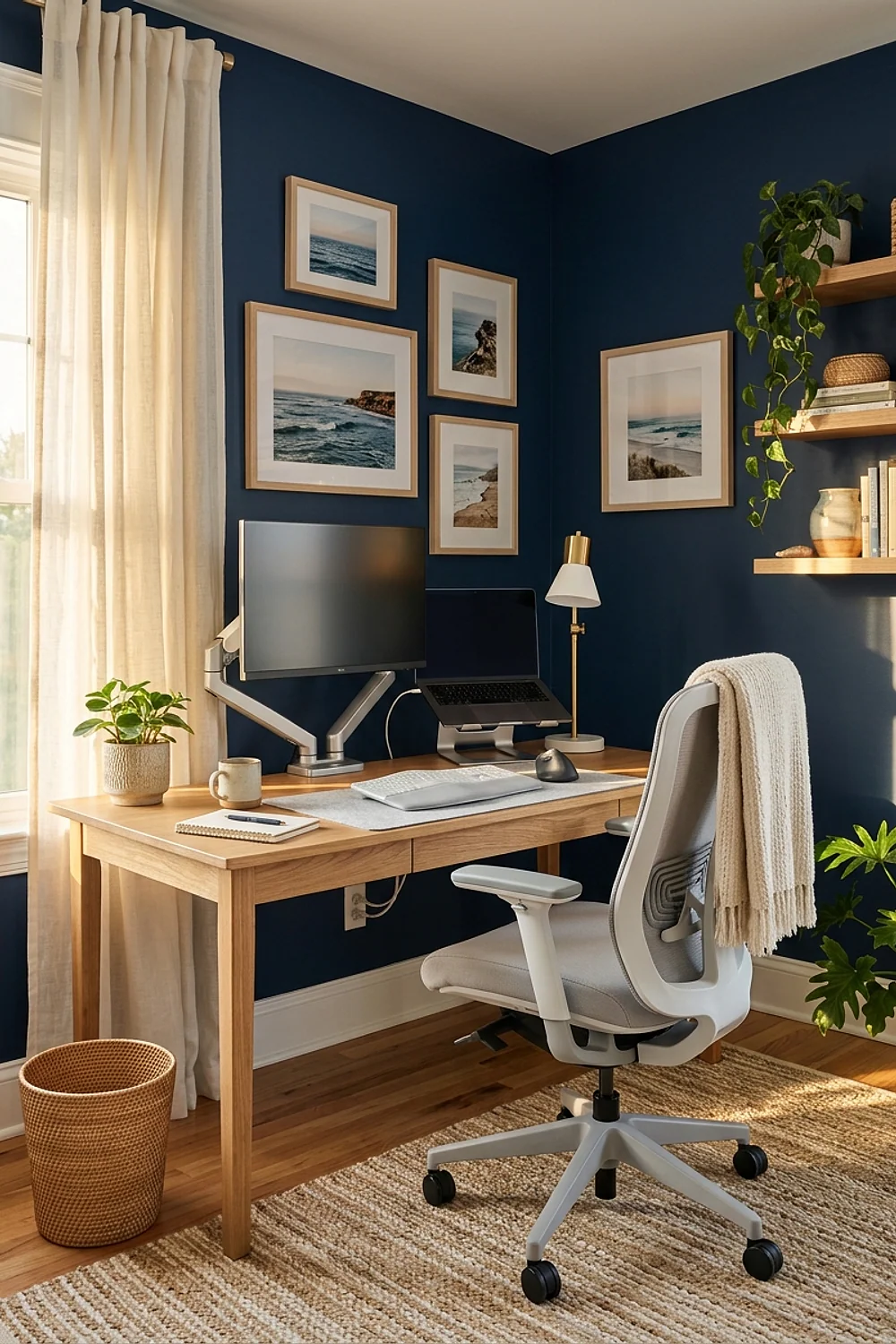
Phone cradled between ear and shoulder is a recipe for a stiff neck that lasts the evening. A wireless headset or earbuds with a mic frees both hands and lets the head stay level.
Look for a mic that picks up voice without needing it close to the mouth. Open-ear designs suit people who take calls in a busy house and still need to hear the doorbell.
26. Sit where you can see the door
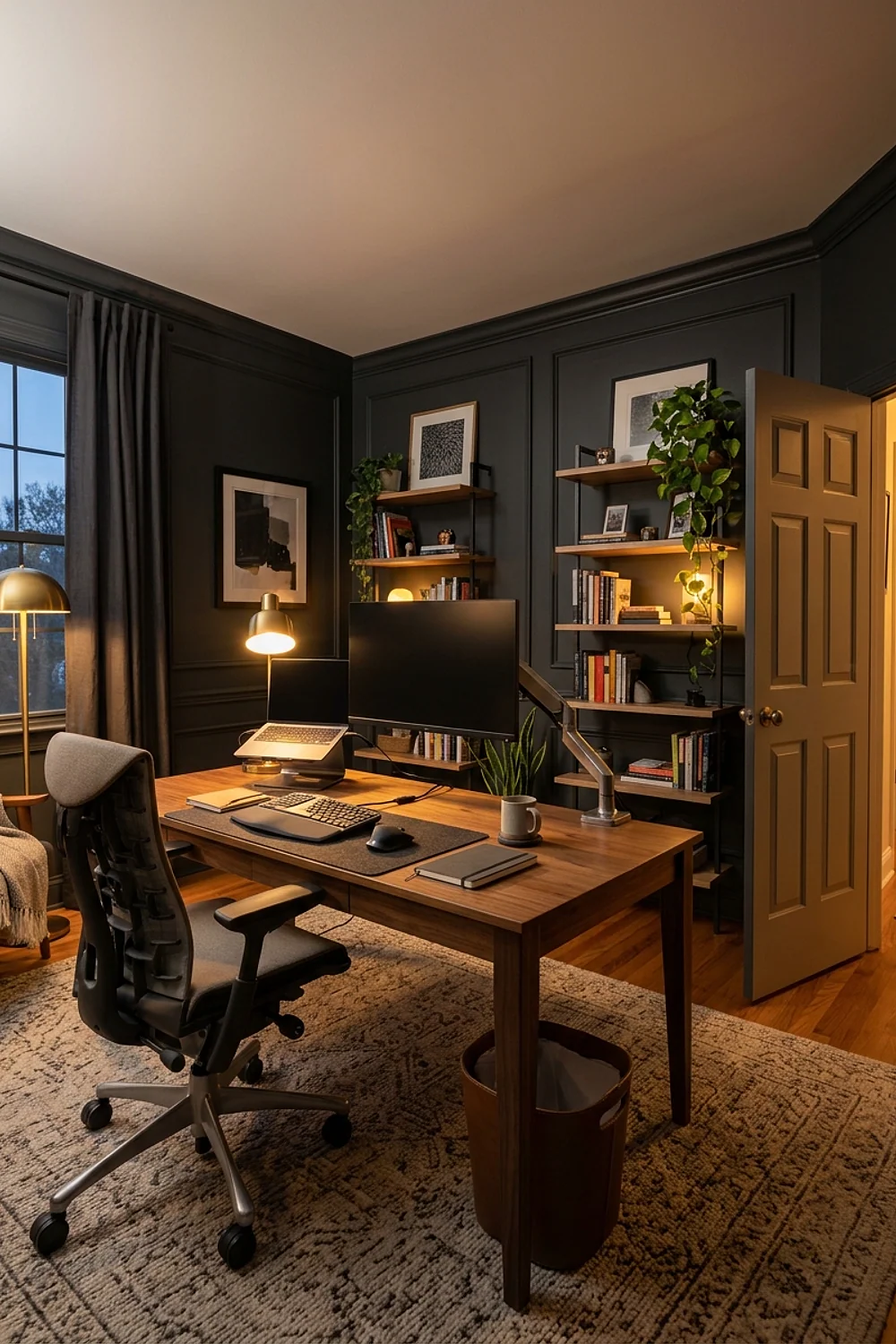
Interior designers call it the command position: a desk that faces the room’s entry, without sitting directly in line with it. The trick reduces that jumpy feeling of someone appearing behind you.
A view out the window can replace it in a bedroom or a spare room. The rule bends when the only wall space puts your back to the door, so angle the chair 45 degrees as a compromise.
27. Style the wall behind the chair for video calls
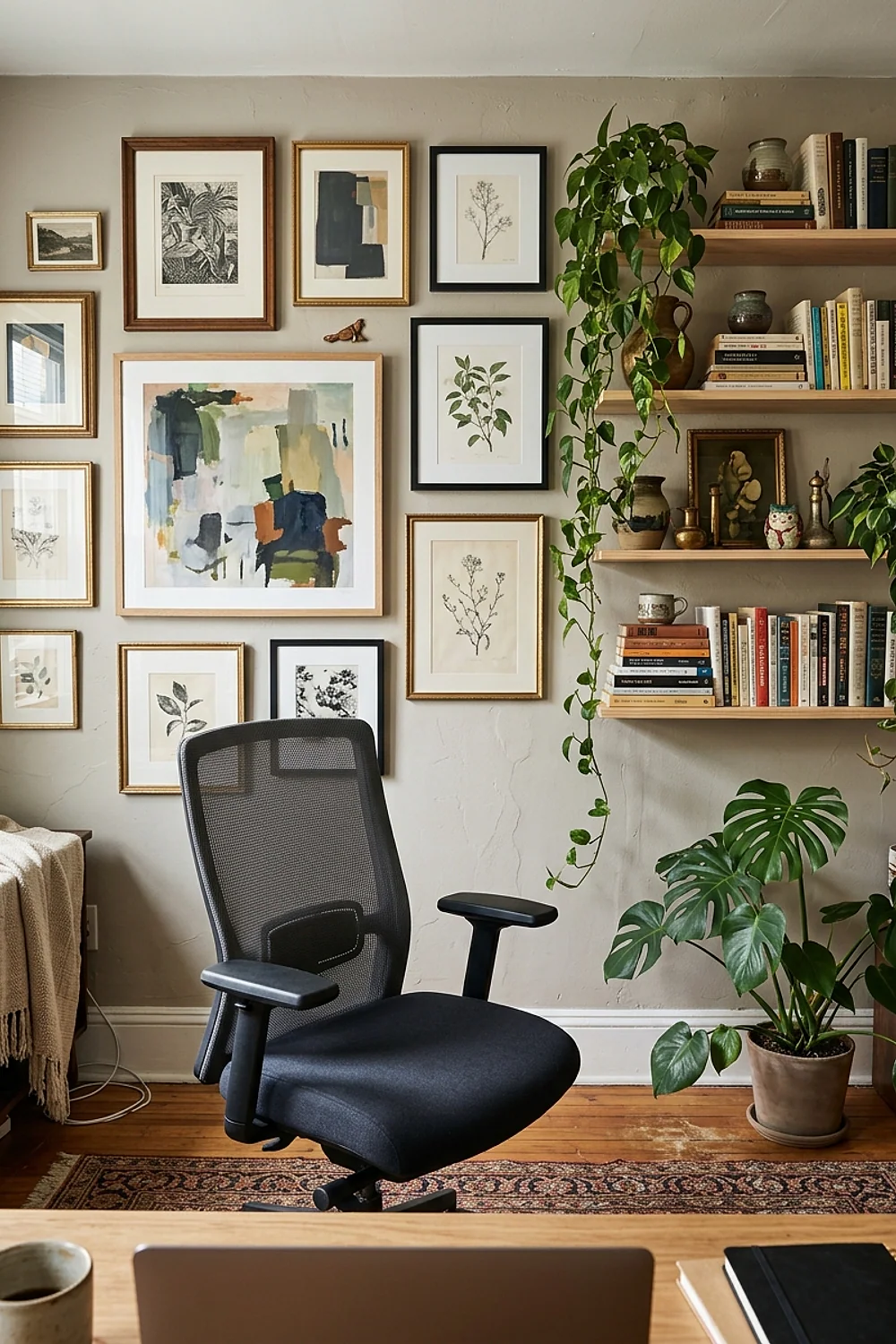
A single 24 by 36 inch print, hung with its center around 48 inches from the floor, reads cleanly behind a seated head on a call. Clutter reads as chaos on camera, and a bare wall reads as empty.
Leave 18 inches of space around the frame so it doesn’t look like it’s growing out of your shoulder. A shallow floating shelf with two objects does the same job.
28. Warm the screen color after dark
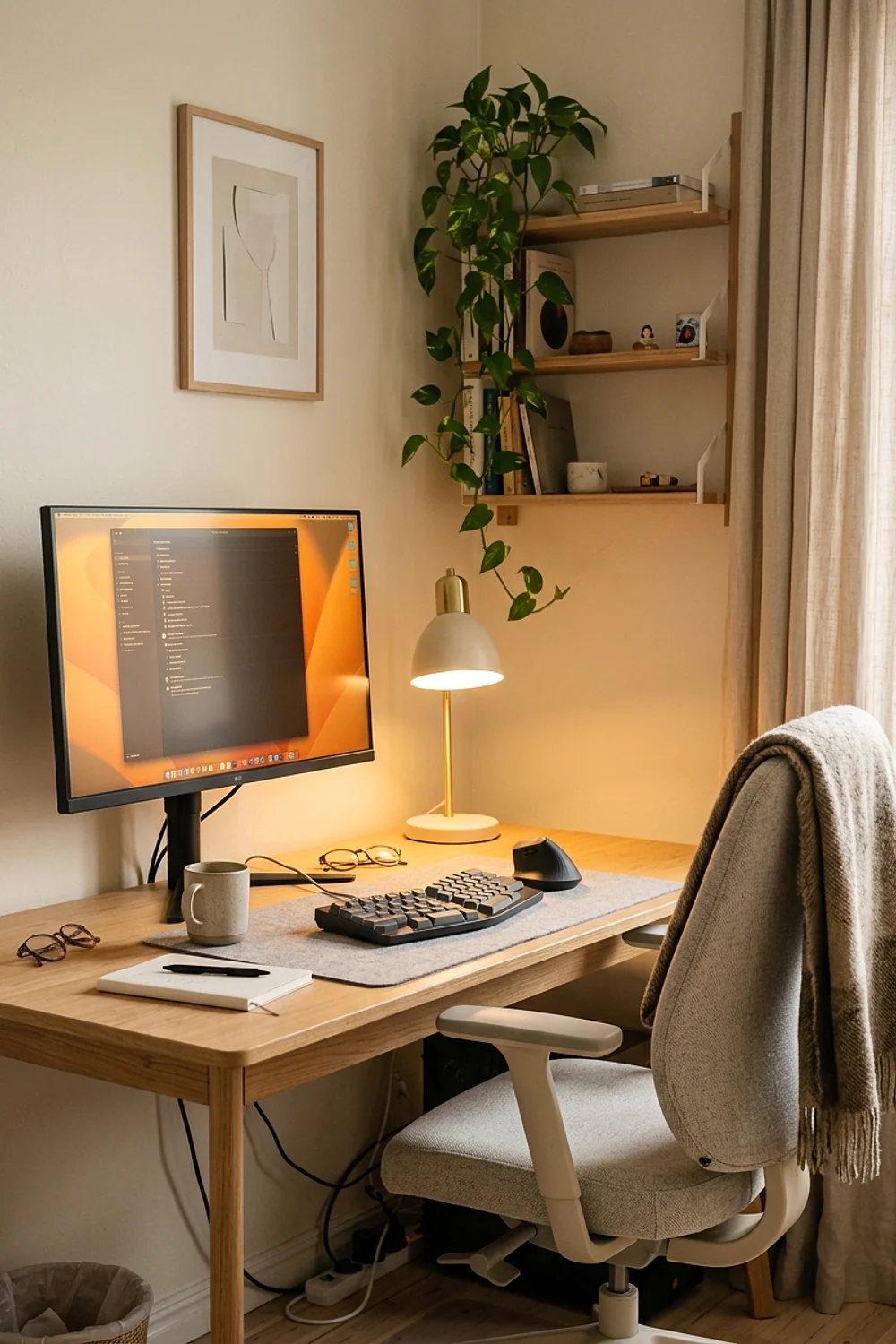
After sunset, a screen at 6500K blasts cool blue at eyes that expect dimmer evening light. Night Shift on a Mac, Night Light in Windows, and f.lux all shift the color warmer on a schedule.
Set it to start at sunset and drop to a 3400K-ish glow. Color-critical work like photo editing is the exception, so turn it off when accuracy matters.
29. Position the task lamp opposite your writing hand
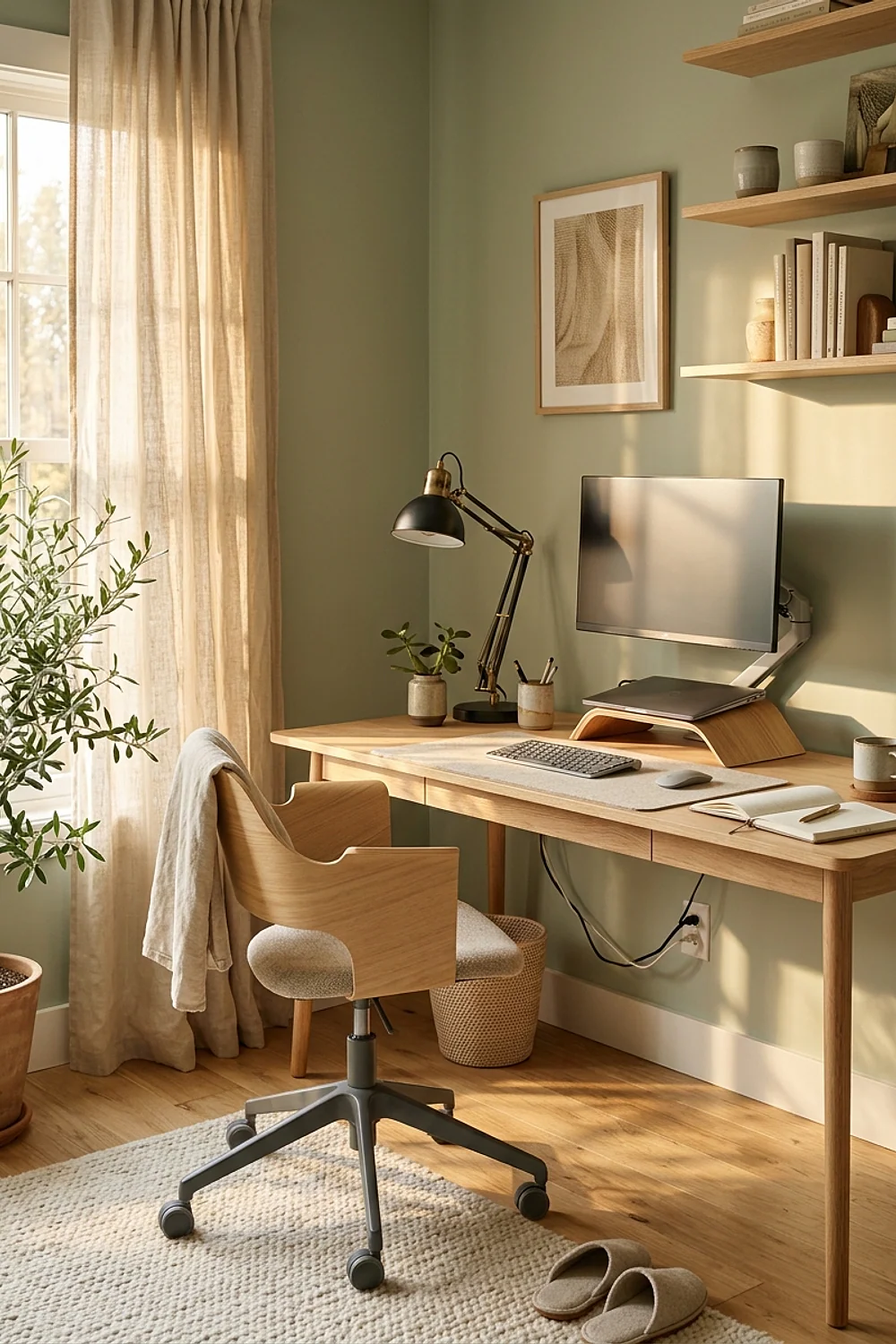
A task lamp on the left of a right-handed writer keeps the hand from casting a shadow over the page. Reverse it for lefties. Aim the head so the beam lands on the paper, not on the monitor.
Look for an adjustable arm and a shade that hides the bulb from the eye line. A lamp with a dimmer handles the shift from morning to evening without a second fixture.
30. Lay a chair mat over carpet or felt pads over hardwood
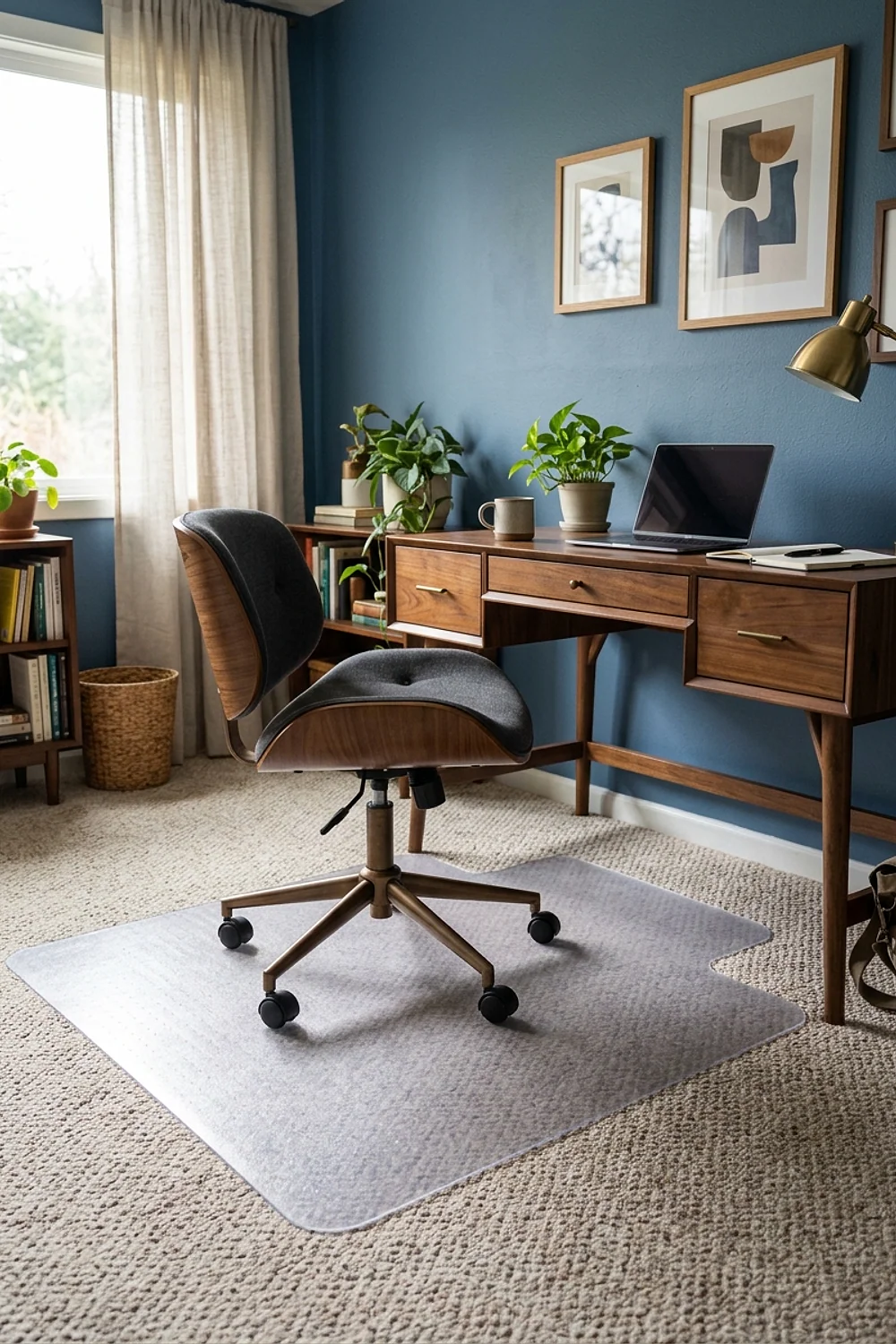
Office chair casters on thick carpet drag, so every roll back becomes a lower-back twist. A hard 36 by 48 inch mat, often around $50, lets the wheels glide. Carpeted rooms in rentals and shared houses suit it well, since nothing is installed.
On hardwood, the opposite problem hits: hard plastic wheels scratch the finish. Swap in soft rubber casters, which grip the floor without marking it. Avoid a mat too small for the full roll radius; a chair that slips off the edge catches and jolts.
31. Match monitor size to viewing distance
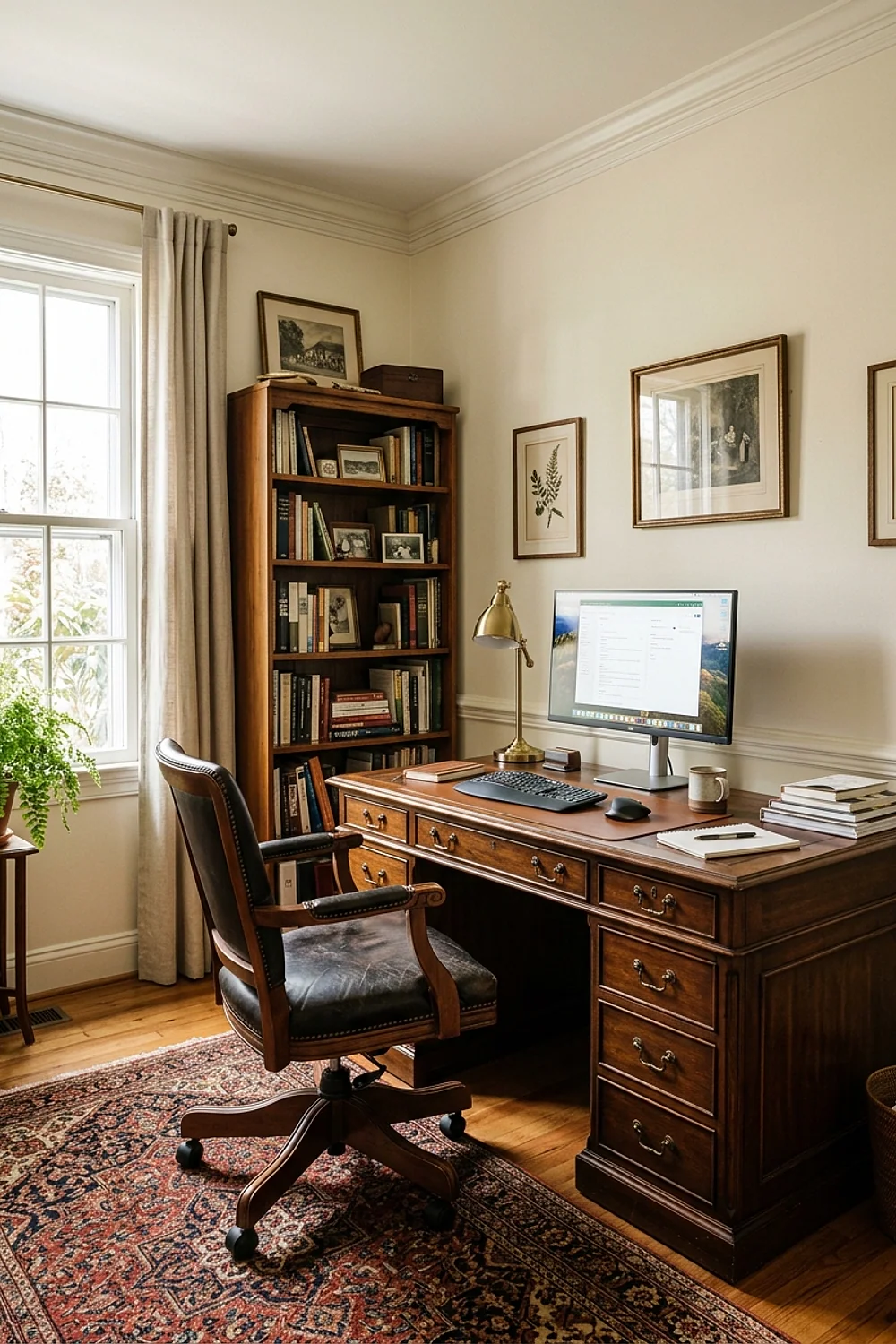
A 27-inch 1440p monitor reads comfortably at about 28 inches, which is why it works so well on a 30-inch-deep desk. A 24-inch screen is fine at 20 to 24 inches.
Ultrawides in the 34-inch range need more depth and a wider desk, around 55 inches. Buying bigger than the desk allows pushes the screen’s edges out of the neck’s comfortable arc.
32. Break every 20 minutes with a 20-20-20 glance
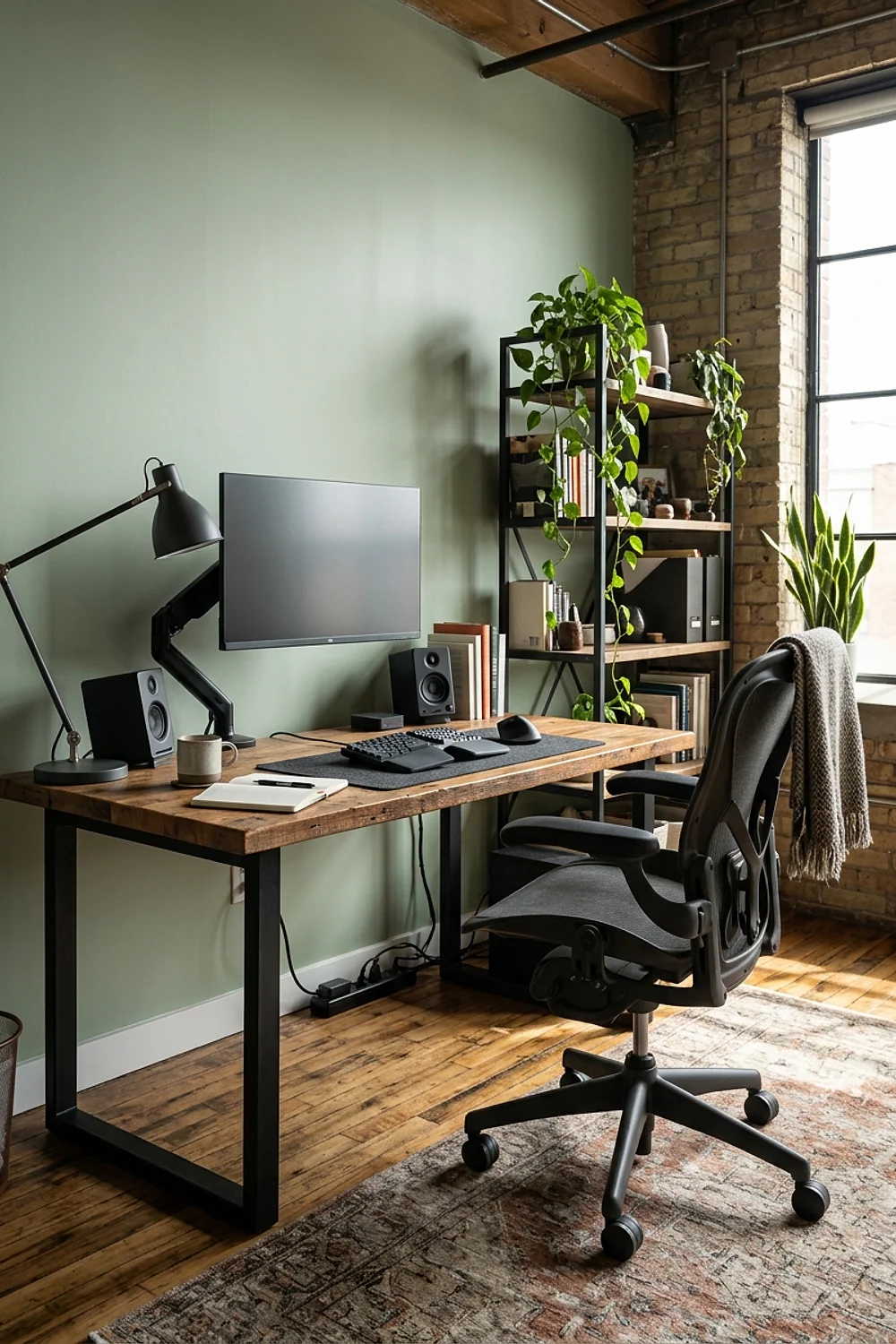
Every 20 minutes, look at something 20 feet away for 20 seconds. The American Optometric Association recommends it for digital eye strain, and a window or a hallway works as the target. Distance gazing relaxes the focusing muscles that stay tightened during close screen work.
Pair it with the 20-8-2 rhythm: stand, refill the water glass, roll the shoulders. A repeating timer on the phone beats good intentions. Small apartments suit it fine, since any far wall counts. Avoid glancing at a second screen or phone, which keeps the eyes focused close.
Walking through the setup
Good rules still bend. Vintage desks at 30 inches are lovely, and a firm 2-inch seat cushion plus a footrest can bring a taller desk into range without replacing a piece you love.
A few exceptions that hold up:
- Working from the sofa for 30 minutes of email is fine. Working there for four hours is not.
- A kitchen counter at 36 inches makes a good standing perch for short calls, with the laptop on a riser.
- A slightly off-center screen is fine when the second monitor is for reference only.
The test is time. A rule you break for 20 minutes costs nothing, while the same rule broken for eight hours a day shows up in the neck by Friday.
Common mistakes
A good ergonomic home office setup falls apart on small oversights, and the same six show up again and again.
- Buying a desk for its look before measuring elbow height.
- Choosing a chair online without checking seat depth.
- Putting the monitor on the desk’s back edge, 36 inches away.
- Skipping a task lamp and relying on a ceiling fixture alone.
- Hiding the power strip where it can’t be reached without crawling.
- Letting a trend dictate the chair.
Chairs outlive trends.
That last one deserves the skepticism. Fashion-led pieces age fast, and a plain adjustable task chair in gray or oatmeal still looks right after three redecorations. Spend the flexibility budget on adjustment range, not on whatever color is popular this season.
Start with the desk height and let the rest follow
An ergonomic home office setup doesn’t need every rule on this list at once. Elbow height, seat depth, and screen position fix most of the pain, and the styling rules make the corner worth sitting in.
Work through them in order, adjusting one item per day so you can feel what changed. A good room is one where the body stops complaining before the afternoon light hits the wall.
Save or pin this list so it’s handy when you’re ready to start, then measure your seated elbow height from the floor before buying anything.
Frequently asked questions
What is the most important part of an ergonomic home office setup?
Chair and desk height working together matter most, because they set the angle of your elbows, hips, and knees. Get those right first, then position the monitor at eye level about an arm’s length away.
How much should I spend on a chair for an ergonomic home office setup?
A solid adjustable task chair starts around $250, and top-tier models run $1,200 to $1,500. Spend on adjustability (seat depth, lumbar, 4D arms) before brand name or looks.
Can I make a dining table work as a desk?
Yes, with adjustments. Most dining tables are 29 to 30 inches high, so add a firm seat cushion if you’re short, a footrest, and a laptop riser with an external keyboard. A dining chair itself usually isn’t built for all-day sitting.
How do I set up a home office in a small room or a rental?
Use a clamp-on monitor arm instead of drilling, a wall-hugging desk 48 inches wide and 30 inches deep, and a lamp with a dimmer. Check that the clamp fits your desk’s thickness, and tuck cables into a stick-on tray.